

Reclip Online Manual
What is Reclip?
AI organizes your memories. Find the photos and videos you want to see instantly.
ReClip" is a media management application that uses AI to automatically analyze a large number of photos and videos stored on a computer and quickly find the content you want to see. You can intuitively search by shooting date and time, location, person, or subject, making it easy to look back on your precious memories anytime.
Table of Contents
- Application Screen Explanation
- Getting Started - Importing Photos and Videos
- Text Search - Find Photos & Videos
- Preview - View Photos/Videos - View
- Sharing and SNS integration - Share photos and videos
- Works with CyberLink PowerDirector for FMV
- Recommendations" screen
- Date Order" screen
- Favorites" screen
- People" screen
- Location" screen
- My Categories" screen
- Video Collection" screen
- Settings/Help" screen
- precautions
- Q&A
| terminology In this manual, the following terms are used for explanations. interpoint (interword separation)contents: This is a generic term for photo and video files. interpoint (interword separation)media library: This is a generic term for photos and videos that Reclip searches for. interpoint (interword separation)thumbnail (i.e. miniature image): An image or video content that has been reduced in size in order to display it clearly at a glance. |
Application Screen Explanation
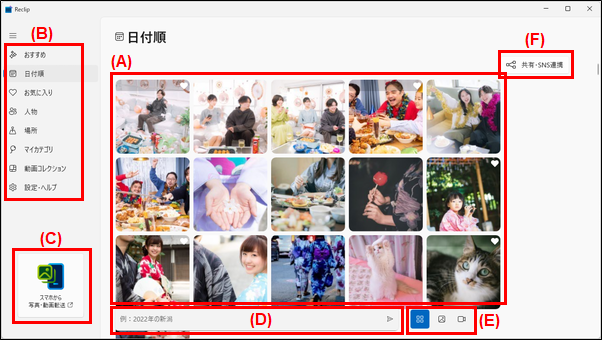
(A) Media Library: Photos and videos are listed according to the display format selected in the menu area.
(B) Menu area: You can switch the display format of Reclip's media library.
(c) Transferring photos and videos from a mobile phone: Use the "Smartphone Photo & Video Backup" application preinstalled on your PC to import photos and videos taken with your smartphone to your PC.
(D) Text search bar: You can search for the photo/video you want to find by entering the date, location, time period, or name of the person who took the photo/video.
(E) Content Filter: You can select the type of content to be displayed in the thumbnail list (all, video only, or photo only).
(F) Sharing and SNS collaboration: You can open external cloud services and social networking sites.
Getting Started - Importing Photos and Videos
Reclip automatically analyzes photos and videos stored in the standard Windows "Pictures" and "Videos" folders.
In addition, when you move or copy your photos and videos to "Pictures" and "Videos" in Windows, Reclip will automatically begin analyzing the added content.
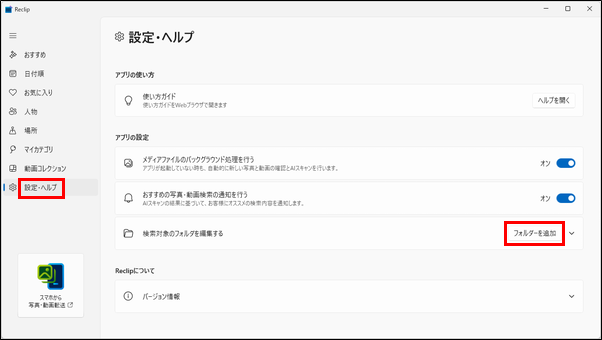
To analyze photos/videos stored in a different location, select "Settings/Help" from the menu area, click the "Add Folder" button in the "Edit Search Target Folder" setting, and select the folder where the photos/videos are stored.
To import photos and videos stored on your smartphone or tablet to your computer, click the "Transfer photos/videos from smartphone" icon in the lower left corner of the screen, and launch the "Smartphone Photo & Video Backup" application to import.
*For details on how to use the "Smartphone Photo & Video Backup" application, please refer to the "Smartphone Photo & Video Backup" application manual.
| attention (heed) Reclip's analysis may take some time if you import more than 1000 files at a time. Analysis will also take time even after the Reclip application is closed. When a folder in OneDrive is set as a search target, files stored only in the OneDrive cloud will not be loaded into Reclip. When external media such as USB memory sticks or DVDs are set as search targets, loading them may fail. In such cases, please copy the stored contents to your PC and set them as the search target. |
Text Search - Find Photos & Videos - Search
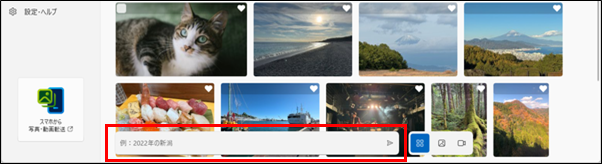
If you want to find a specific photo or video in the media library, you can enter a natural sentence in the text search bar to narrow down your search for the target content.
Text search allows you to search for content by entering a combination of "date taken," "time taken," "location," "name of person or group," and "what is in the picture" of the content.
Example:
July 2025
Christmas in 2025 (summer vacation, New Year's, etc.)
Kyoto in 2025 (name of prefecture and country)
XX (name of person) for Golden Week in 2025.
Cats in Tokyo in October 2025
| Tip! If "Date taken" and "Location" information is not recorded in the contents, it will not be displayed in the search results. The searchable locations in "Location" are "Prefecture", "Country", "State (U.S. only)", and "Province (China only)". When searching by "person name" or "group name," it is necessary to set the person name or group on the "Person" screen in advance. The "what you see" is based on the analysis of Reclip's AI function and may not necessarily be accurate. |
Preview - View Photos/Videos - View
When viewing a large photo or video found in a text search or other search, click on the thumbnail to see the photo or video in a preview window.
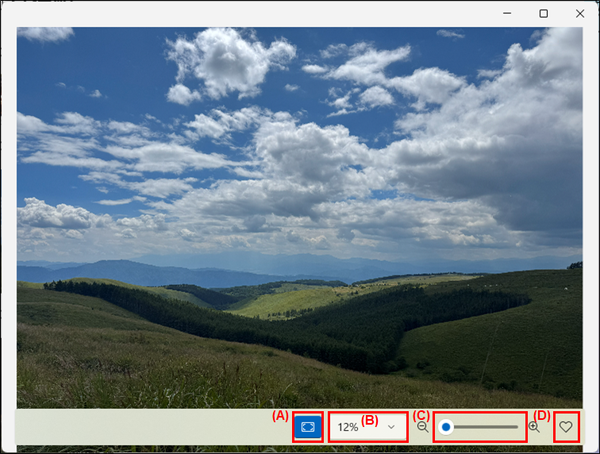
Photo preview screen
(A) Zoom to Actual Size/Fit to Window: Click the button to enlarge the photo to its actual size. Clicking the button again will reduce the size of the photo to fit the size of the window in which it is displayed.
(B) Zoom selection: You can select the magnification ratio of the photo.
(C) Zoom adjustment: The magnification of the photo can be adjusted with the slide bar.
(D) Favorite: You can register the displayed content as a "favorite".
| Tip! Zoom can also be adjusted with the mouse wheel up or down. |
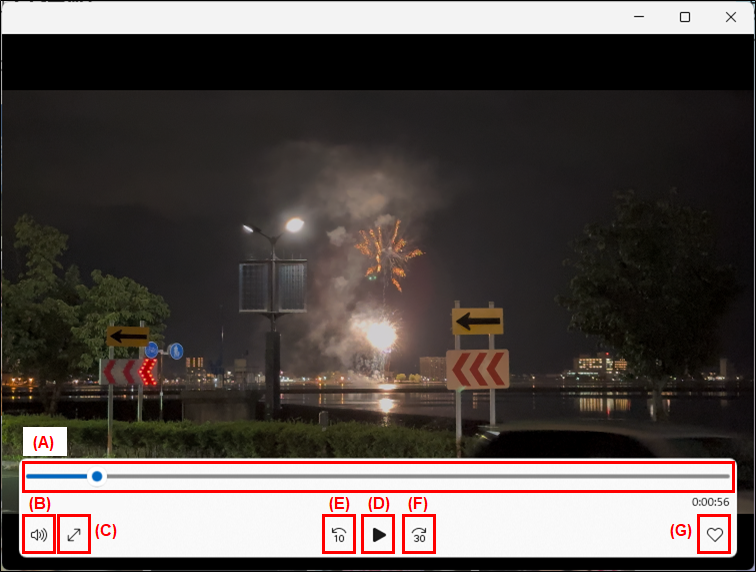
Video preview screen
(A) Seek bar: The playback position of the video can be adjusted with the slide bar.
(B) Volume: Allows you to change the volume of the video playback.
(C) Full screen/window display: Video playback can be toggled between full screen and windowed mode.
(D) Playback/Primary StopPlay/pause video.
(e) 10 sec. fast reverse: Fast-forward the video by 10 seconds.
(F) 30 second fast forward: Fast-forward the video by 30 seconds.
(G) Favorite: You can register the displayed content as a "favorite".
Sharing and SNS Linkage - Share photos and videos
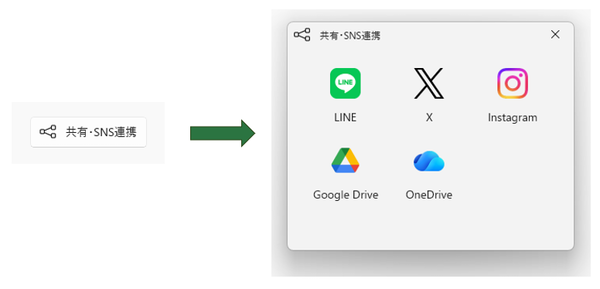
Clicking on the "Share/SNS Connections" button on each screen of Reclip will open pages for the following five social networking and cloud services. Use these services to post photos and videos of memories found in Reclip and share them with your family and friends.
- Line
- an unknown
- Google Drive
| Tip! Drag and drop a single thumbnail or multiple selected thumbnails from the Reclip window to the SNS content upload page to copy the selected content to the SNS page. For some services, it is necessary to create an account when using the service. For details on how to use each service, please refer to the manual of the service or contact the support of each service. |
Works with CyberLink PowerDirector for FMV
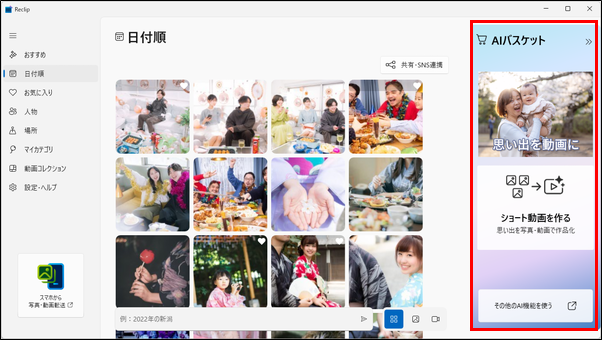
If you have the CyberLink PowerDirector for FMV application pre-installed on your computer, it can be linked to Reclip to automatically create a short video using the AI function of the CyberLink PowerDirector for FMV application based on the content selected in Reclip. The AI function of the "CyberLink PowerDirector for FMV" app can automatically create short videos based on the content selected in Reclip.
| Tip! The original content for creating a short video can be selected according to the following rules The number of files should be selected from a minimum of 2 and a maximum of 20 files. If video files are included in the selection, they must all be selected so that the total playback time of the video files combined will not exceed 200 minutes. |
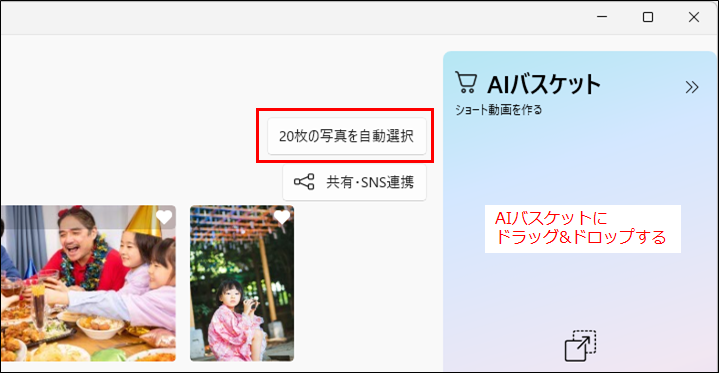
If your computer has the CyberLink PowerDirector for FMV application preinstalled, the AI Basket will appear on the right side of the Reclip screen. To create a short video, select the original content to be used to create it in the following ways
- Open the "Recommendations", "People", "Groups", "Places", and "Categories" displayed in Reclip and click the "Auto Select 20 Photos" button; Reclip will automatically select up to 20 random photos from those displayed and add them to the AI Basket.
- Select one or more thumbnails of the content you wish to use and click the "Add Basket" button.
- Drag and drop the thumbnail of the content you wish to use directly into the "AI Basket".
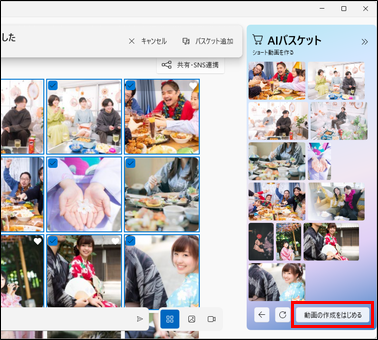
Once you have added all the content you wish to use to the "AI Basket", click the "Start Creating Video" button to launch the "CyberLink PowerDirector for FMV" application.
*For details on how to use the CyberLink PowerDirector for FMV application, please refer to the manual for the CyberLink PowerDirector for FMV application.
Recommendations" screen
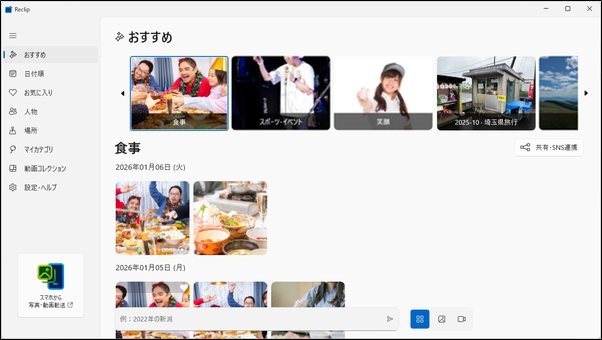
Select "Recommendations" from the menu screen to display the "Recommendations" screen. In the "Recommend" screen, Reclip analyzes photos and videos in the media library and displays highlights of memories automatically selected by AI as "Recommended Search".
In addition, the "Recommended Search" will be rewritten to a new one after a certain period of time, and you can look back on your memories through the Windows notification function.
| Tip! If you do not want Reclip notifications to appear, select "Settings/Help" in Reclip and turn off the "Notify me of recommended photo and video searches" setting. |
Date Order" screen
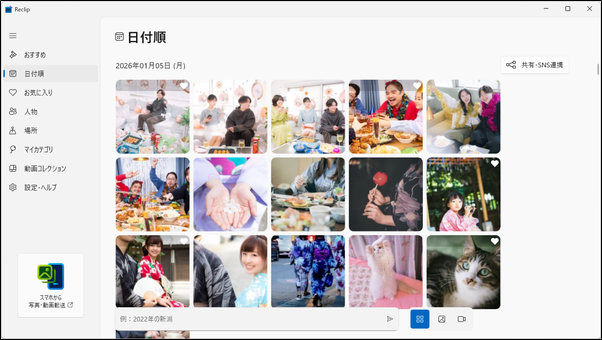
Select "Date Order" from the menu screen to display the "Date Order" screen.
The "Sort by Date" screen displays photos and videos in the media library in order of the date they were taken, allowing you to search for the content you want to view by shooting date.
| Tip! If the "Date Taken" information is not recorded in the contents, the "Modified Date" of the contents is regarded as the "Date Taken" and the contents are displayed in date order. |
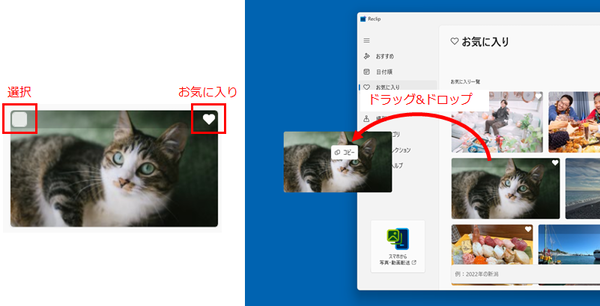
Also, when the mouse cursor is moved over a thumbnail, buttons appear in the upper right and left corners of the thumbnail.
Clicking the button in the upper right corner will cause the clicked content to become selected, and continuing to select other thumbnails will allow multiple selection of thumbnails. In addition, by dragging and dropping a single thumbnail or multiple selected thumbnails out of the Reclip window, you can copy the selected content out of the Reclip window.
Click the button in the upper left corner to register it as a "favorite.
Favorites" screen
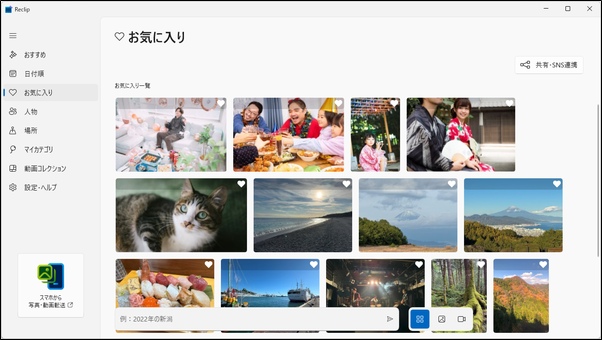
Select "Favorites" from the menu screen to display the "Favorites" screen.
In the "Favorites" screen, only the photos and videos set as "Favorites" are listed.
People" screen
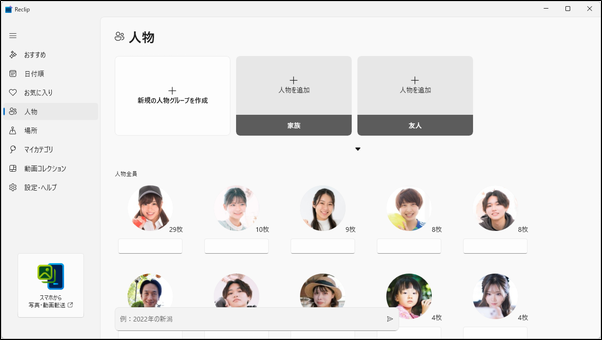
Select "People" from the menu screen to display the "People" screen.
In the "People" screen, Reclip automatically analyzes the faces of the people in the photos/videos and displays them in order of the number of faces in the photo/video. To find a person, click on the person icon in the "People" section. You can also set a name to a person or create "groups" such as "family" or "friends" among people to make it easier to find content using "text search.
| attention (heed) The "People" screen will not display people who are not "well represented" in the photos/videos in the media library. Also, it is not possible to manually recognize people. The same person may be recognized as a different person or a different person may be recognized as the same person depending on the angle of the face in the photo/video, the mask worn, etc. |
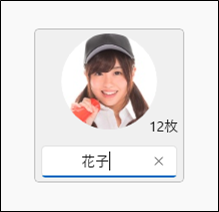
To set a name for a person, click in the Name entry field and enter the name you wish to set.
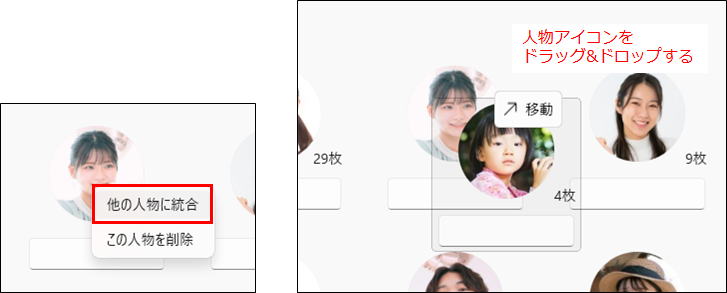
If Reclip recognizes the same person as multiple people, you can right-click on the person icon ⇒ select "Merge with other people" and specify the person you wish to merge, or drag and drop the person icons on top of each other.
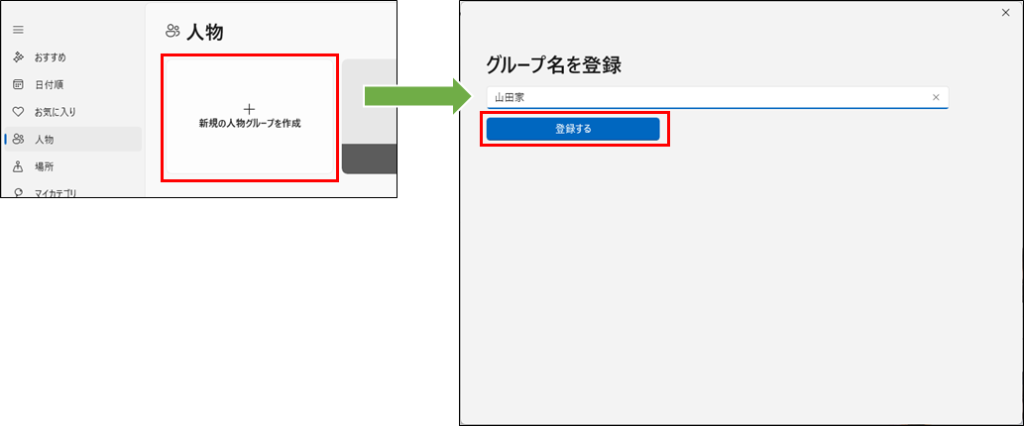
Groups" can also be created in the following ways
(1) Click "Create New Person Group," enter a group name in the "Register Group Name" window, and then click the "Register" button.
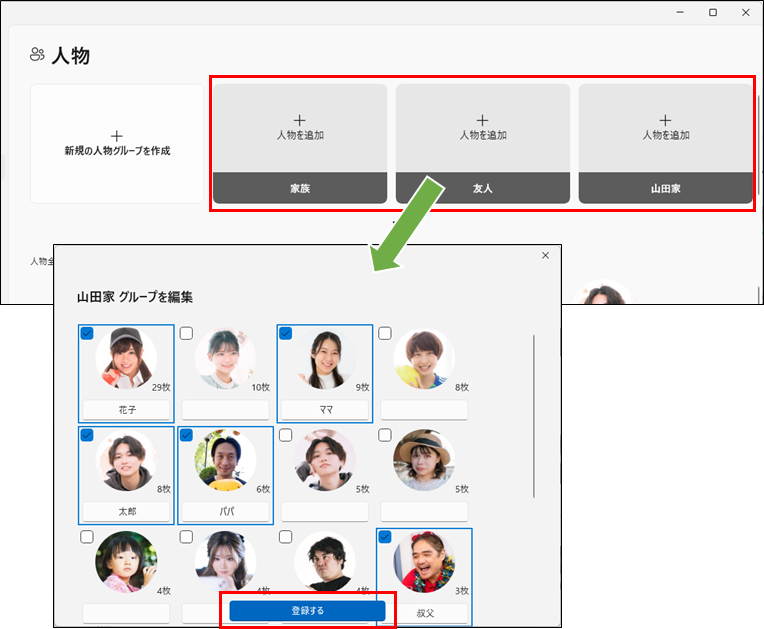
Click "Add Person" in the created group, select the check box for the person you wish to register, and click the "Register" button. You can also register a person by dragging and dropping the person icon onto the created group.
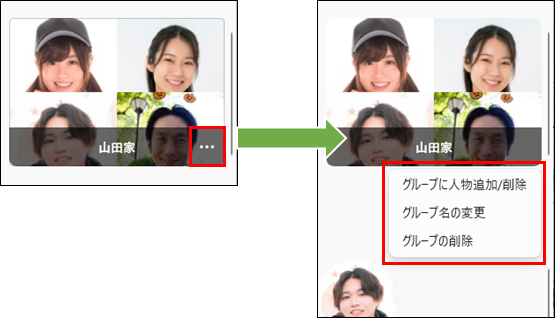
(iii) If you want to delete a group name or registered person, or delete a created group, open the group you want to edit and click the "..." button to select Edit.
Location" screen
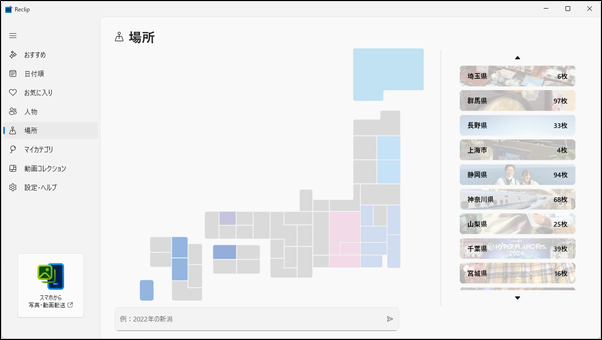
Select "Location" from the menu screen to display the "Location" screen.
The "Places" screen refers to the "Location" data in the contents, and displays them by prefecture for Japan, by country (or region) for overseas, by state for the U.S., and by province for China. To search for content by the "Location" where it was taken, click on the list displayed on the right side of the "Location" screen, or on the prefecture displayed on the map of Japan if you are in Japan.
| attention (heed) Content that does not contain "Location" data will not be displayed on the "Location" screen. Video files and photos downloaded from cloud services such as social networking sites may not contain "Location" data. |
My Categories" screen
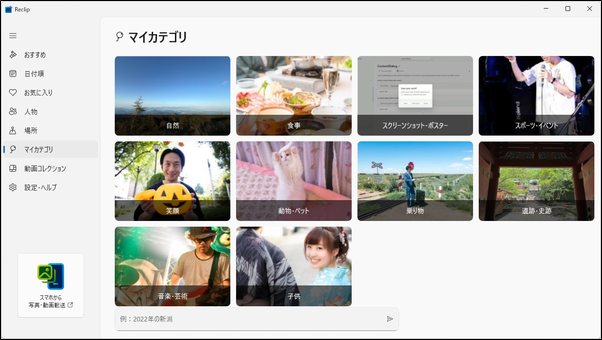
Select "My Categories" from the menu screen to display the "My Categories" screen.
In the "My Categories" screen, Reclip automatically analyzes the "things" in the content and displays them in several "categories" such as "Meals" and "Sports & Events".
Video Collection" screen
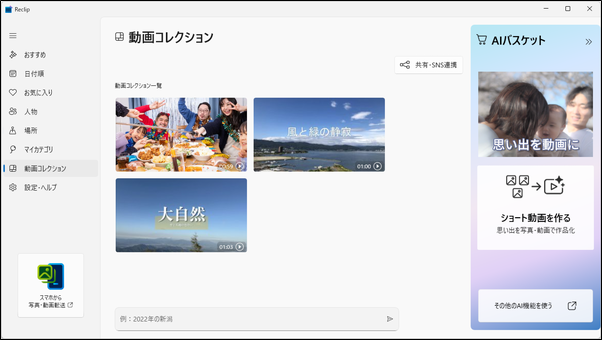
Select "Video Collection" from the menu screen to display the "Video Collection" screen. The "Video Collection" screen displays a collection of short videos and other videos created with the "CyberLink PowerDirector for FMV" application.
| attention (heed) If you do not have the "CyberLink PowerDirector for FMV" application preinstalled on your computer, or if you have not yet used the "CyberLink PowerDirector for FMV" application, the "Video Collection" screen will not display any content will not be displayed on the "Video Collection" screen. If the file destination is changed in the "CyberLink PowerDirector for FMV" application, the contents will not be displayed on the "Video Collection" screen. |
Settings/Help" screen
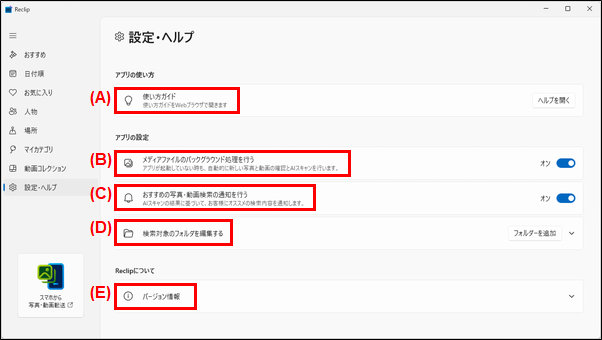
Select "Settings/Help" from the menu screen to display the "Settings/Help" screen. The "Settings & Help" screen allows you to change the settings of the Reclip application and open this online manual.
(A) Usage Guide:. Open this online manual.
(B) Perform background processing of media files:. Analysis is automatically performed when new content is added, even when the Reclip application is closed. If you do not wish to perform analysis, please turn off the setting.
(c) Notification of recommended photo/video search.: Reclip will periodically notify you of "recommended searches" automatically extracted by Reclip via the Windows notification function. If you do not want to be notified, please turn off the setting.
(D) Edit the folder to be searched: Add a folder location for the content to be analyzed in Reclip. Click the "Add Folder" button and select the folder you wish to add.
(E) Version informationReclip: View the installed Reclip version, privacy policy, and other software license information.
precautions
- The "Recommended Search" may not be displayed until Reclip's automatic analysis is complete.
- Reclip uses AI functions to recognize "what is in the photo," so if there is an object in the photo that is difficult to distinguish, it may be misidentified as something else and displayed as a search result.
- When a photo/video is selected in Reclip, if the original photo/video file is moved or deleted, or if a new file is added, the thumbnail list in Reclip will be updated and the photo/video may no longer be selected.
Q&A
| What should I do if my photo or video thumbnails no longer appear? |
|---|
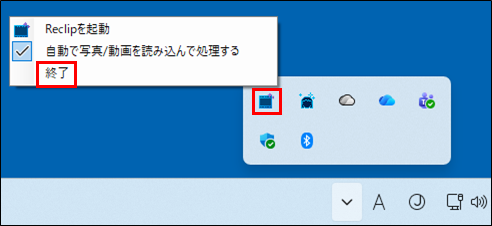 If you do not see the photo or video thumbnails, exit Reclip and start Reclip again by following the instructions below. 1. right-click on the Reclip icon in the task tray at the bottom right of the Windows screen. (If you cannot see the icon, click on the "^" symbol to reveal the hidden icon.) Select "Exit" from the menu that appears. |
| Why doesn't "AI Basket" appear in Reclip? |
|---|
| There are two reasons why "AI Baskets" do not appear in Reclip If your computer does not have the CyberLink PowerDirector for FMV application preinstalled. If you have uninstalled the "CyberLink PowerDirector for FMV" application from your computer. |
Microsoft, Windows, and OneDrive are either registered trademarks or trademarks of Microsoft Corporation in the United States and/or other countries.
PowerDirector is a trademark of CyberLink Corp.
LINE is a trademark or registered trademark of LINE Yahoo!
X and the X logo are trademarks or registered trademarks of X Corp.
Instagram is a trademark or registered trademark of Meta Platforms, Inc.
Google Drive and Google Drive are trademarks of Google Inc.
All other company names and product/service names are trademarks or registered trademarks of their respective owners. Some TM, (R) marks, etc. are not indicated in the text.